Introduction
SystemRescueCd is a versatile and powerful live Linux distribution designed for system rescue, data recovery, and disk management tasks. Unlike traditional operating systems installed on hard drives, SystemRescueCd boots directly from a CD, DVD, USB flash drive, or network, providing administrators and users with a self-contained environment to troubleshoot, repair, and maintain computer systems. This article explores the origins, architecture, functionality, and practical applications of SystemRescueCd, offering an in-depth look at how it works, what it is oriented to, and various curiosities related to its usage.
What is SystemRescueCd?
Origins and History
SystemRescueCd was first released in 2005 by François Dupoux (also known as “François Dupont” in early versions) as a response to the growing need for a dedicated toolkit to manage and recover broken systems. Over the years, it has evolved to include a wealth of utilities, modern kernel support, and graphical environments, while maintaining its core mission of reliability and portability. In 2017, the project was renamed to SystemRescue to better reflect its cross-platform nature, but the traditional “Cd” suffix remains in many distributions and documentation.
Main Components
- Linux Kernel: Custom-configured to support a wide range of hardware and filesystems.
- Core Utilities: GNU tools (coreutils, util-linux), BusyBox, and specialized recovery software.
- Filesystem Tools: Parted, GParted, FSArchiver, ntfs-3g, xfsprogs, btrfs-progs, and more.
- Network Tools: DHCP, SSH, SFTP, rsync, wget, curl, and network file system support.
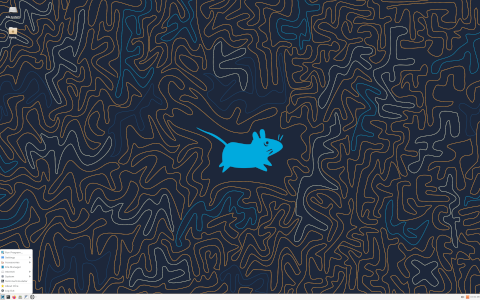
- Graphical Environments: XFCE as the default desktop, with lightweight display management.
- Scripting and Automation: Bash, Python, and Perl for custom rescue scripts.
How It Works
Boot Process
SystemRescueCd uses Syslinux or GRUB as its bootloader depending on the media type. When you insert the CD or USB and boot your system, the bootloader presents a menu of options:
- Default Boot: Launches the standard environment with full graphical interface.
- Text Mode: Boots a command-line environment for minimal resource usage.
- Safe Mode: Disables certain drivers and modules to improve compatibility.
- Memtest: Runs memory tests to check for RAM errors.
After selecting an option, the kernel and initial RAM filesystem (initramfs) are loaded into memory. This approach allows you to remove the boot media after startup and continue operating entirely from RAM, making it ideal for systems with damaged storage devices.
Filesystem Support
One of the standout features of SystemRescueCd is its extensive filesystem support. The distribution natively handles:
- FAT16, FAT32, NTFS (including NTFS journaling) via ntfs-3g
- Ext2/Ext3/Ext4
- XFS, JFS, ReiserFS, Btrfs
- ISO9660, UDF (for optical media)
- Network filesystems: NFS, CIFS (SMB), SSHFS
This broad compatibility allows administrators to mount, browse, and repair almost any partition type encountered in typical desktop or server environments.
Network and Remote Access
SystemRescueCd includes a suite of network utilities for both wired and wireless connectivity:
- DHCP Client: Automatic IP configuration.
- Static Configuration: Manual IP, gateway, and DNS setup.
- Wireless Tools: wpa_supplicant, iwconfig, and wireless-tools.
- Remote Access: OpenSSH server and client for secure shell connections.
- File Transfer: scp, sftp, rsync, wget, and curl.
These capabilities make it easy to access remote systems, transfer files, or integrate with network storage for backup and recovery operations.
Purpose and Orientation
System Recovery
At its core, SystemRescueCd is built for recovering non-bootable systems. By providing a live environment isolated from the host’s primary OS, it enables troubleshooting without risking additional damage. Common recovery scenarios include:
- Repairing bootloaders (GRUB, syslinux).
- Fixing corrupted partition tables.
- Recovering deleted partitions.
- Resetting lost passwords via chroot and passwd commands.
Partitioning and Disk Management
With tools like Parted, GParted, and fdisk, SystemRescueCd facilitates:
- Creating, resizing, moving, and deleting partitions.
- Aligning partitions for SSD/HDD performance optimization.
- Converting between partition table formats (MBR to GPT).
- Setting partition flags (bootable, hidden, RAID).
Data Rescue
Data recovery is a critical use case. Utilities such as TestDisk, PhotoRec, dd, and ddrescue are available to:
- Scan disks for lost or deleted partitions and files.
- Recover photos, documents, and other file types from damaged partitions.
- Clone failing disks sector-by-sector to healthy media.
- Extract data from partially corrupted storage.
Maintenance Tasks
Beyond recovery, SystemRescueCd supports routine maintenance, including:
- Filesystem checks (fsck for ext, xfs_repair for XFS).
- Defragmentation and cleanup.
- Software updates on offline systems via chroot.
- Performance monitoring using top, htop, iostat.
Key Features
| Feature | Description |
|---|---|
| Live Environment | Runs entirely from RAM, leaving local storage untouched. |
| Broad Filesystem Support | Ext, NTFS, XFS, Btrfs, ReiserFS, ISO9660, NFS, CIFS. |
| Graphical and CLI Tools | XFCE desktop plus command-line utilities. |
| Disk Imaging | dd, ddrescue, FSArchiver for backups and cloning. |
| Network Support | DHCP, static IP, wireless, SSH, FTP, SFTP, rsync. |
| Bootloader Repair | GRUB and Syslinux configuration and repair tools. |
Use Cases
Scenario 1: Boot Failure
- Boot from SystemRescueCd USB.
- Mount the root partition:
mount /dev/sda1 /mnt. - Chroot into the environment:
chroot /mnt. - Reinstall GRUB:
grub-install /dev/sdaandupdate-grub. - Exit and reboot, verifying system boots normally.
Scenario 2: Filesystem Errors
- Identify corrupted partition:
fsck.ext4 -n /dev/sda2. - Run repair:
fsck.ext4 -y /dev/sda2. - If XFS:
xfs_repair /dev/sda3. - Review logs for remaining issues.
Scenario 3: Data Cloning and Imaging
- Clone failing drive:
ddrescue -f -n /dev/sdb /dev/sdc rescue.log. - Verify integrity:
cmp /dev/sdb /dev/sdc. - Use FSArchiver for filesystem-level backup:
fsarchiver savefs backup.fsa /dev/sdb1.
Curiosities and Additional Information
- Minimal System Requirements: 512 MB RAM for CLI mode, 2 GB for graphical session.
- Persistent Configuration: You can create a persistent overlay on USB media to save custom scripts and settings.
- Regular Updates: New kernels and tools are released frequently ISO images are updated every few months.
- Modular Design: Modules can be loaded/unloaded at runtime to add support for specific hardware.
- Community-Driven: Contributions come from both individual volunteers and organizations focusing on open-source rescue solutions.
- Alternative Names: Also known as “SystemRescue” without the “Cd” suffix, especially in recent versions.
Getting Started
Downloading and Creating Boot Media
- Visit the official website: https://www.system-rescue.org.
- Download the latest ISO image (e.g.,
systemrescue-9.08.iso). - Create bootable USB:
dd if=systemrescue-9.08.iso of=/dev/sdx bs=4M status=progress. - Alternatively, use tools like Rufus, Etcher, or UNetbootin on other platforms.
Basic Commands
- lsblk – Lists block devices and partition layout.
- mount – Mounts partitions for access.
- chroot – Changes root directory to repair installed systems.
- parted – Interactive partition editor.
- testdisk – Recovers lost partitions and files.
- ddrescue – Efficiently clones disks with error handling.
Conclusion
SystemRescueCd stands out as an essential toolkit for IT professionals, system administrators, and advanced users. Its comprehensive set of recovery and maintenance utilities, combined with broad hardware and filesystem support, make it the go-to solution for diagnosing and repairing critical system failures. Whether you face boot issues, partition corruption, or need to clone failing hardware, SystemRescueCd provides a reliable environment to rescue data and restore functionality. By understanding its architecture, key features, and best practices, you can leverage this powerful distribution to minimize downtime and avoid data loss in virtually any emergency scenario.
Leave a Reply